

Account and data
Create an account and save your projects
You can design without an account. An account adds the AI, orders and downloads, and saves your projects to the cloud so you can open them on another device.
In this guide
Create the account
Step 1: Open Create account
Click Create account at the top right of the app. Enter your E-mail and a Password: At least 10 characters. A short phrase of several words works well.
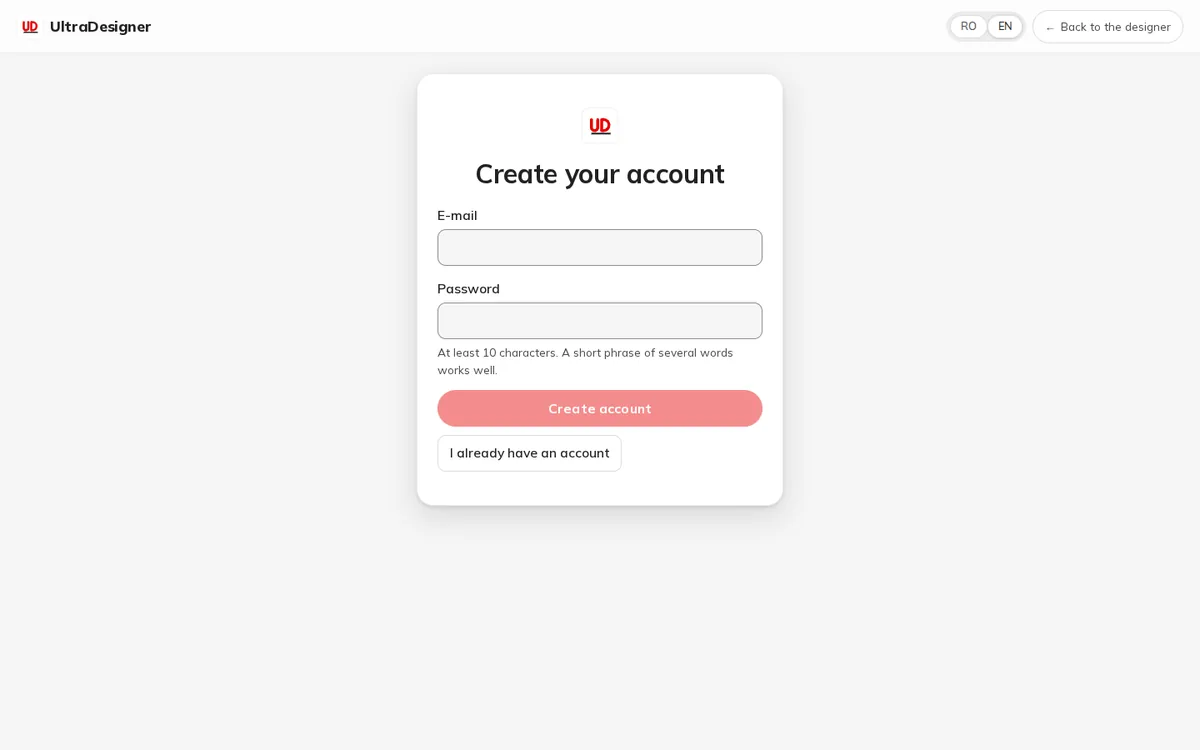
Step 2: Confirm your e-mail
After Create account you see Check your inbox. Open the link in the e-mail within 24 hours. If it did not arrive, use Send the confirmation again.
Step 3: Sign in
Sign in with your e-mail and password. The designs you made in this browser as a visitor are moved into your account; the app says Your design was saved to your account.
Your projects
Projects lists your designs, most recently edited first. You can Search projects by name and sort them. Each card shows where the design is saved: ☁ Saved to the cloud, Only in this browser or ☁ Only in the cloud (saved from another device; it downloads when you open it).
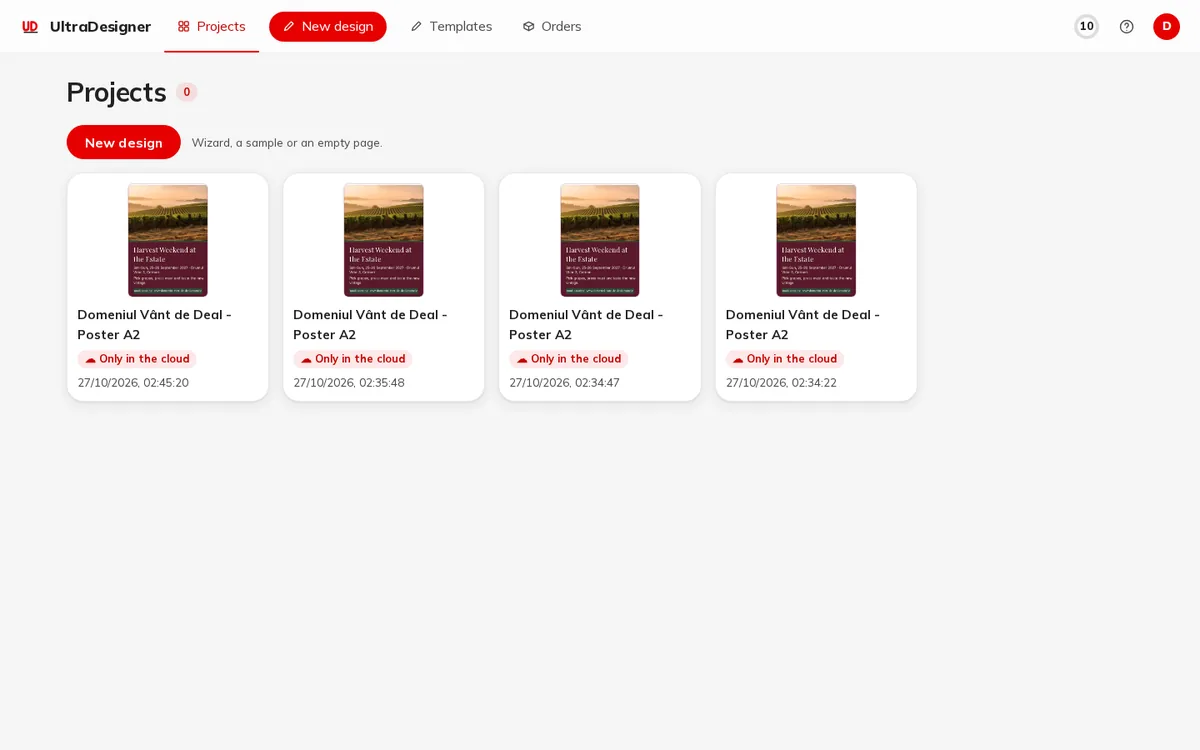
The menu on each project card offers Open, Duplicate, Rename, Order, Download, Brand pack and Delete. Deleting asks you to confirm.
Language and theme
The app is in Romanian and English. Switch the language from the account menu or on the Your account page (Language); the account menu also has the Dark, Light and System themes. The language of the texts printed on a design is chosen separately, in the design itself.
Screens and prices in the pictures are examples; the app always shows the current price before you pay.
Written for the app as of 2026-10-27.