

Getting started
Your first design, without an account
You can start designing straight away, without creating an account. This guide takes you from the first screen to an open design in the editor.
Start a design
Step 1: Open the designer
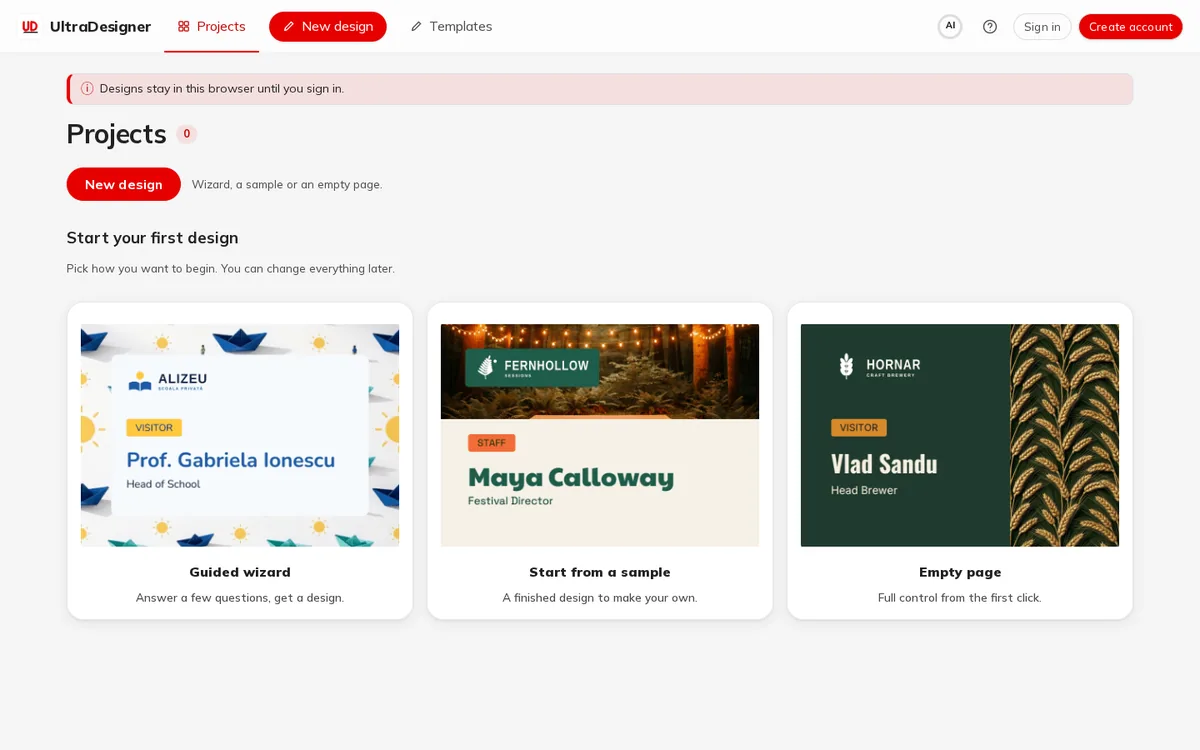
Open the designer. The first screen is Projects. Without an account you see the note Designs stay in this browser until you sign in. and three ways to begin: Guided wizard, Start from a sample and Empty page.
Step 2: Pick what you want to make
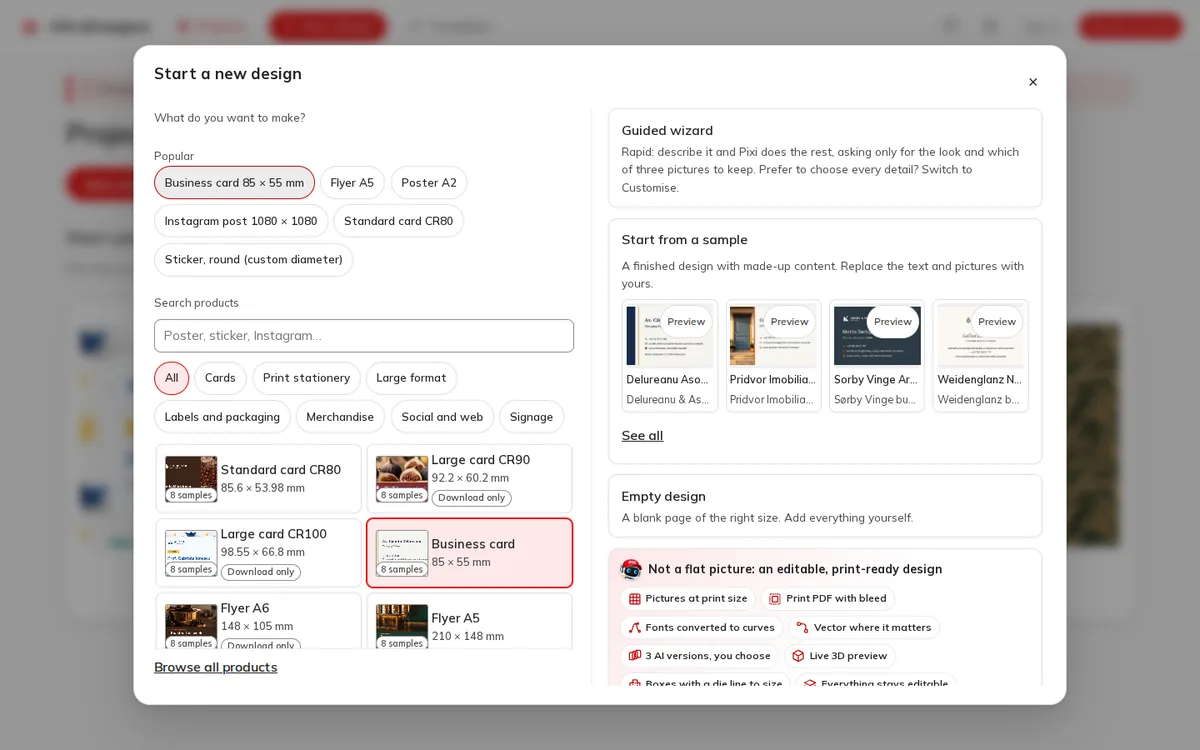
Click New design. The window Start a new design asks What do you want to make?: pick one of the Popular products, search for one, or filter by family (cards, print stationery, large format and so on).
Step 3: Choose how to start
When a product is selected, the right side shows the ways to start: Guided wizard (the AI drafts the design, needs an account), Start from a sample (a finished design with made-up content that you replace) or Empty design (a blank page of the right size).
Step 4: Edit in the editor
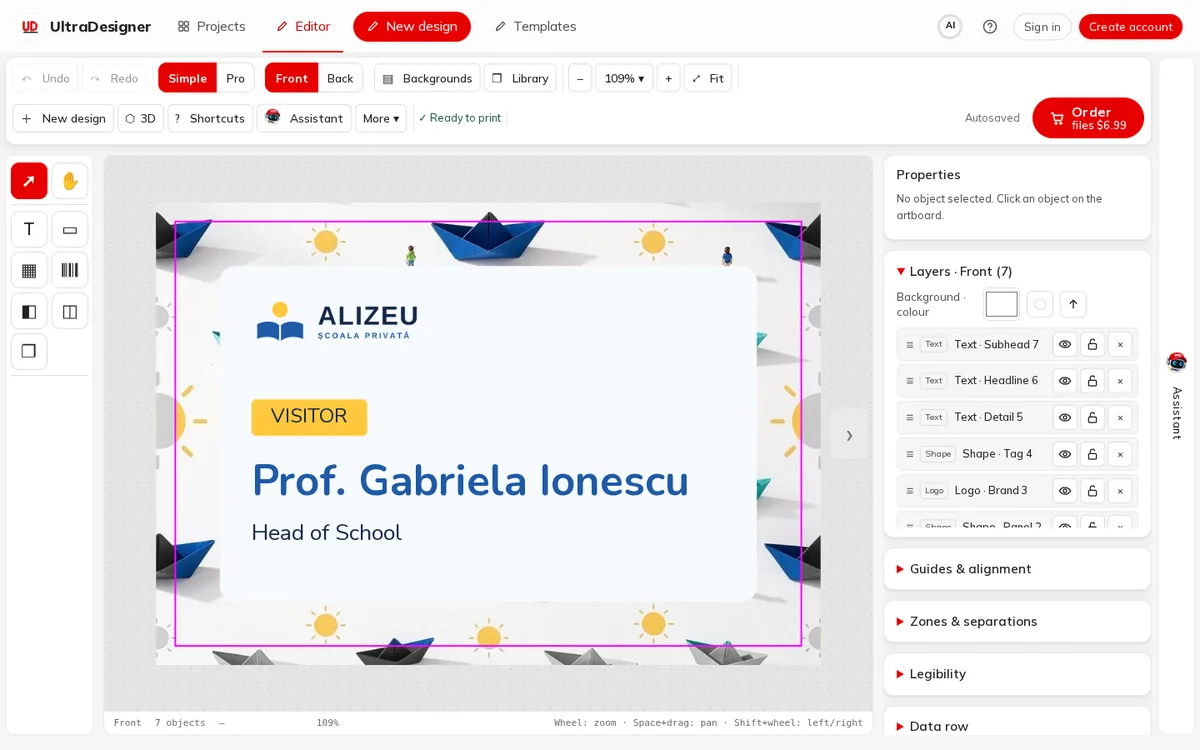
The design opens in the Editor. Click any text or picture to change it. Your work is saved as you go: the toolbar shows Autosaved.
What works without an account
Without an account you can use the product catalog, the templates and samples, empty designs and the whole manual editor, including the print check and the 3D view.
You need an account to use the AI (the guided wizard, the Pixi assistant and the AI picture tools), to order and to download files. When you sign in, the designs you made in this browser are moved into your account.
What to read next
Screens and prices in the pictures are examples; the app always shows the current price before you pay.
Written for the app as of 2026-10-27.