

Getting started
Choose a product, size and options
Every design starts from a product: a card, a flyer, a poster, a label, a mug wrap or a social media post. The product fixes the size of the page, the bleed and the safe area.
Pick the product
Step 1: Open the catalog
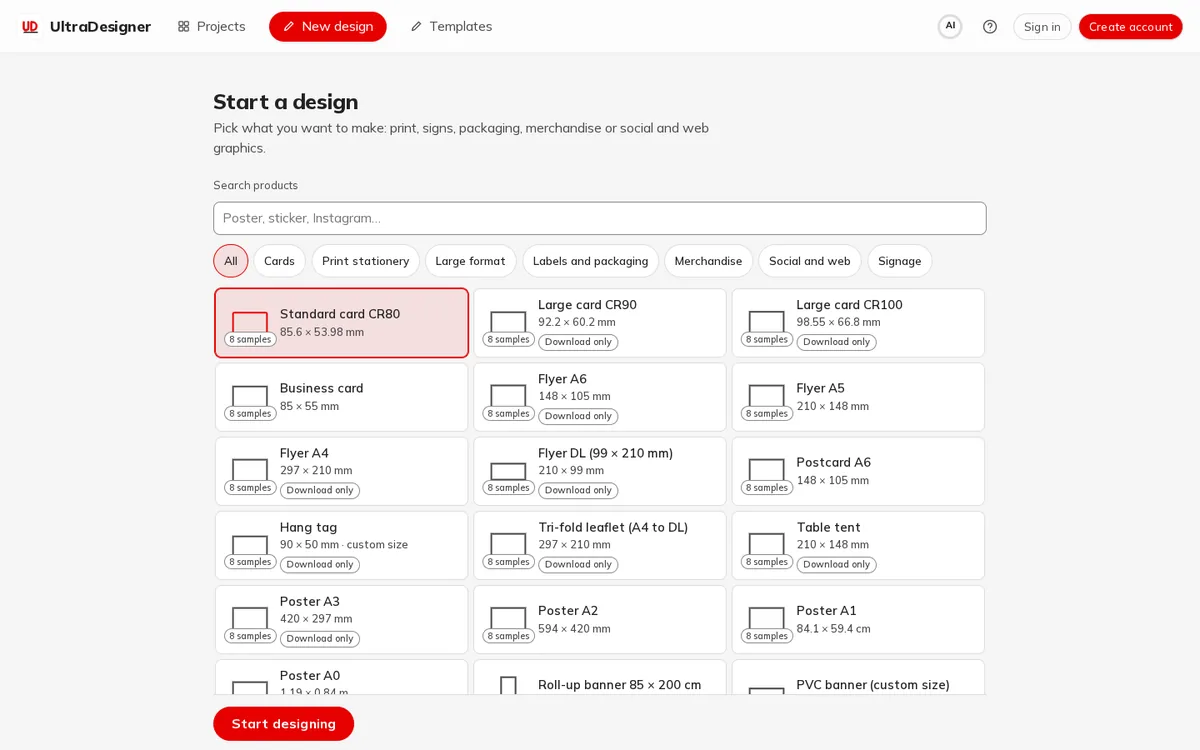
Open Start a design in the app. Type in Search products (for example "poster" or "sticker") or use the family buttons: Cards, Print stationery, Large format, Labels and packaging, Merchandise, Social and web and Signage.
Step 2: Read the product row
Each row shows the size (in millimetres, centimetres or pixels for digital formats), how many samples there are, and a Download only badge when you can buy the design's files but not order it printed.
Step 3: Set the options
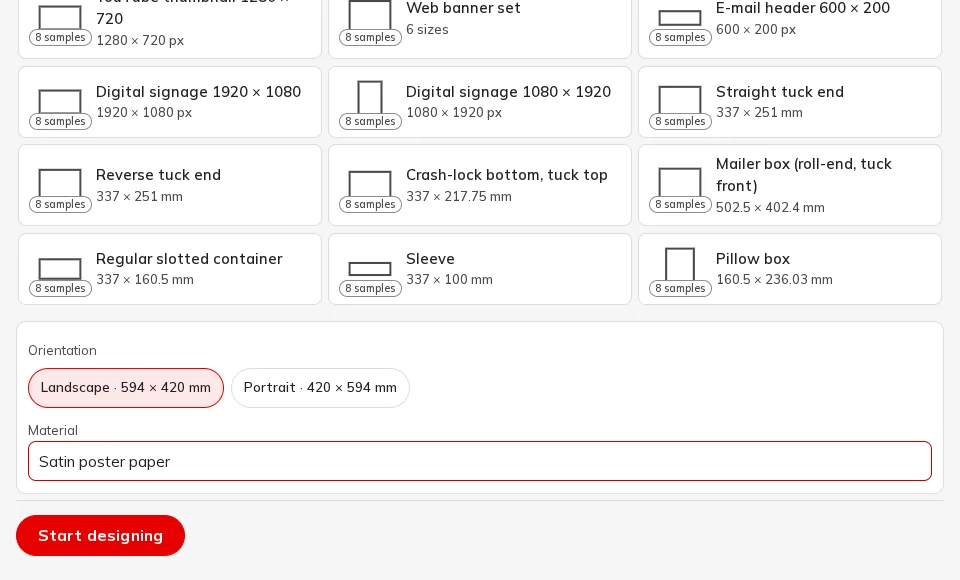
Click a product. Below the list you choose its options, depending on the product: Orientation (Landscape or Portrait), Size (or a custom width and height), Sides (One side or Two sides), Material and Finish.
Step 4: Start designing
Click Start designing. The window that opens lets you choose between the guided wizard, a sample or an empty design (see Your first design).
Notes you may see
- Size not yet confirmed with the print shop: we check it before production. The size has not been confirmed by a print shop yet; it is checked before anything is produced.
- This format can be designed but can't be ordered yet. You can design it, but you cannot place an order for it yet.
- Digital file: downloaded as an image. Social and web formats are sized in pixels and delivered as image files.
- Large format: you design at one tenth of the real size, the print is made at full size. The largest posters and banners are drawn smaller on screen; the print file is made at the real size.
Changing the product later
In the editor, the Pro mode has a format control to change the format of an open design. After a change of orientation the app tells you about text that no longer fits and offers to make a new background. It is usually simpler to choose the right product before you start.
Screens and prices in the pictures are examples; the app always shows the current price before you pay.
Written for the app as of 2026-10-27.