
Getting started
Start from a template
Templates and samples are ready-made designs. Everything in them stays editable: you replace the wording, the pictures and the colours with your own.
Find a template
Step 1: Open the templates
Click Templates in the app menu, or open the template gallery directly. The page is called Ready-made templates.
Step 2: Filter the list
Search by word (for example "poster", "sale", "elegant"), then narrow the list with Kind (Finished samples or Templates), Product type, Product, Wording language and Style. Clear filters shows everything again.
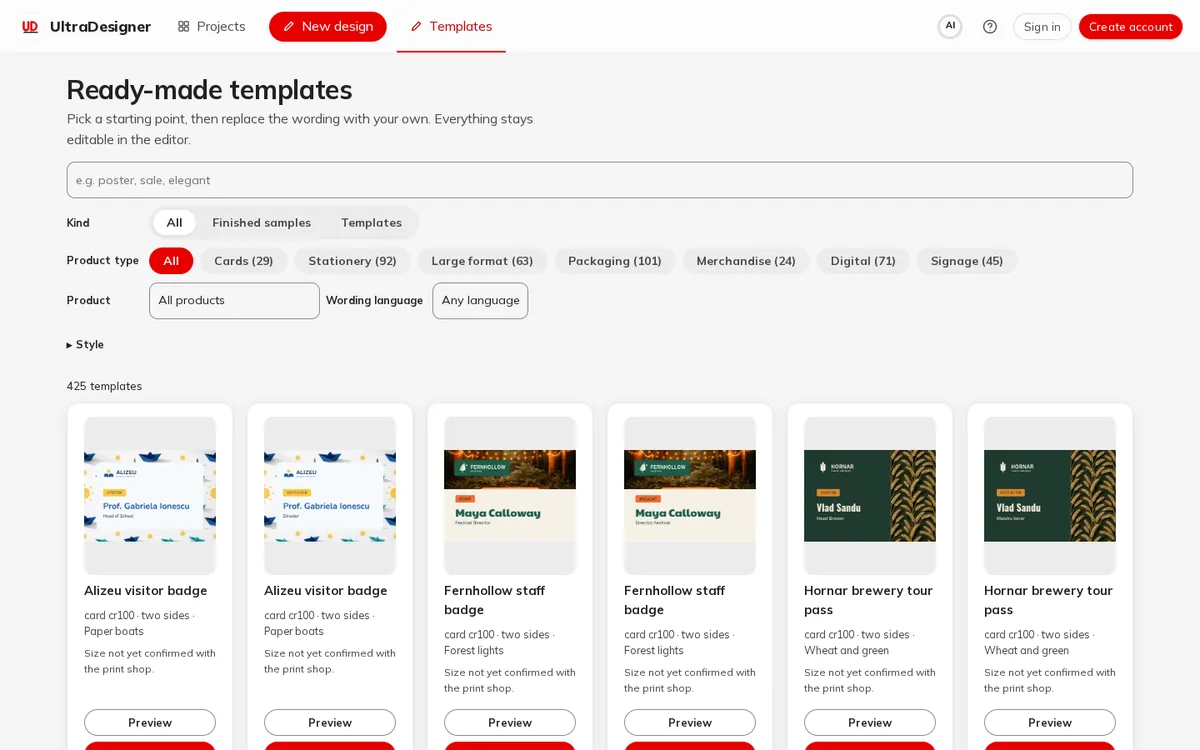
Step 3: Preview it
Click Preview on a tile. The preview shows the front and back, a 3D tab, the product, size, printed sides, colours and tags. The arrows at the bottom move to the next template.
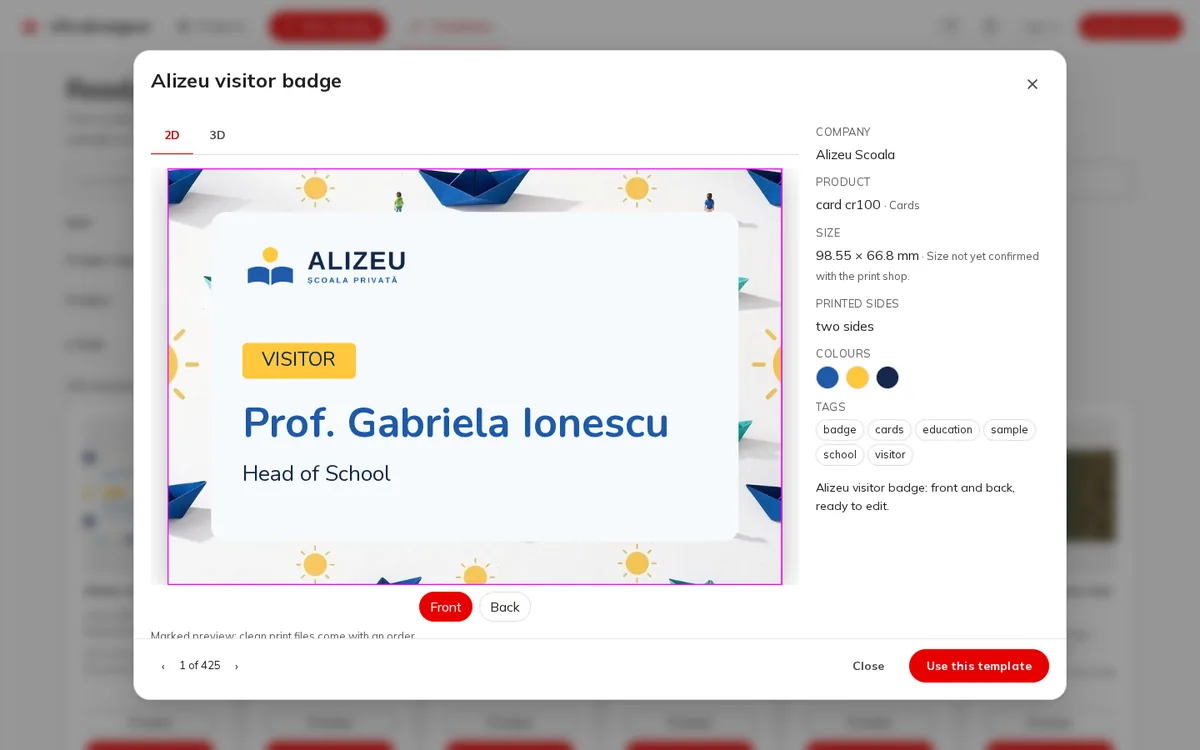
Step 4: Use it
Click Use this template (or Use template on the tile). A new project opens in the editor with the template's content.
Samples and templates: the difference
Finished samples are complete designs for made-up companies: they show what a product can look like. Templates are starting layouts meant to be filled in. Both open as an editable project.
Previews are marked
The preview window says Marked preview; clean print files come with an order. Previews are for looking; the clean, full-resolution files come only with a paid download or print order. See Download the clean files.
Screens and prices in the pictures are examples; the app always shows the current price before you pay.
Written for the app as of 2026-10-27.