

AI and brand
Create a design with the guided wizard
The guided wizard turns a short description into a finished, editable design. You confirm the type, the texts and the look; the AI paints the pictures and lays everything out in layers you can still change.
Before you start
The wizard uses AI, so it needs an account. Without one, the app asks you to sign in and keeps what you filled in. Pictures the AI paints are taken from your daily free AI allowance (see The Pixi assistant and the daily AI allowance).
The three steps
Step 1: Choose the product and the wizard
Click New design, pick a product and choose Guided wizard.
Step 2: Type and language
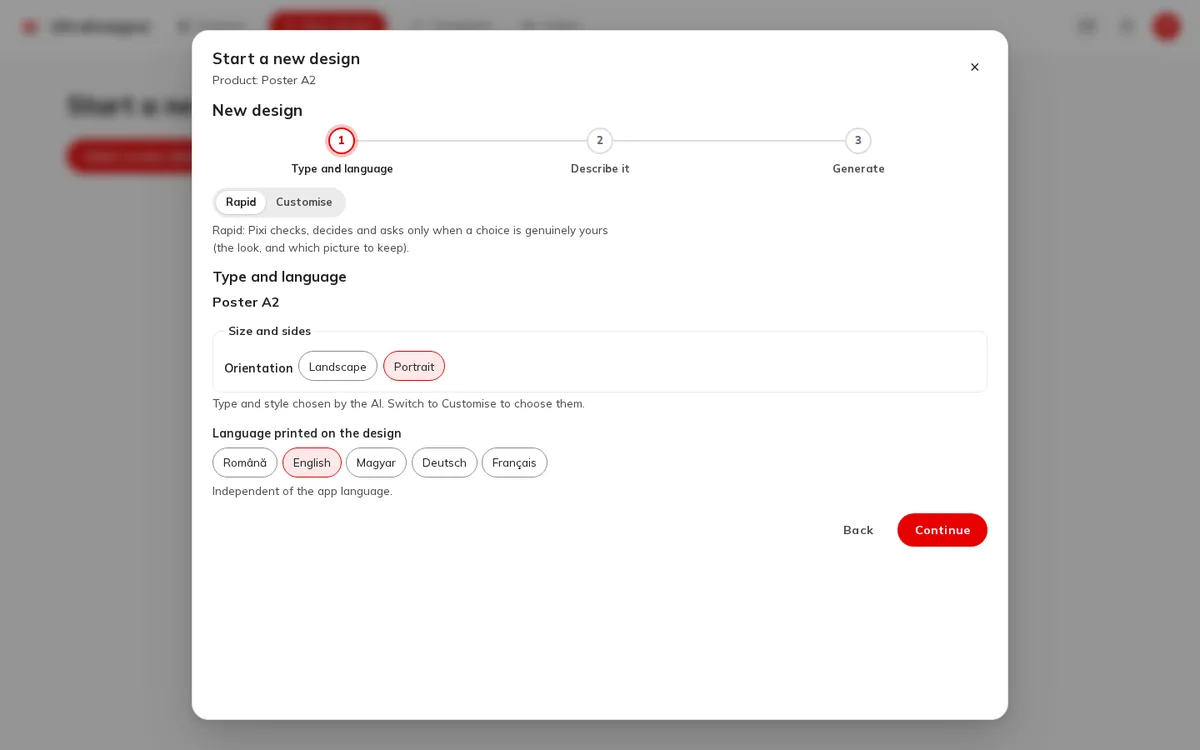
In Type and language, check the product, size and orientation and choose the Language printed on the design (it is Independent of the app language.). Then click Continue.
Step 3: Describe it
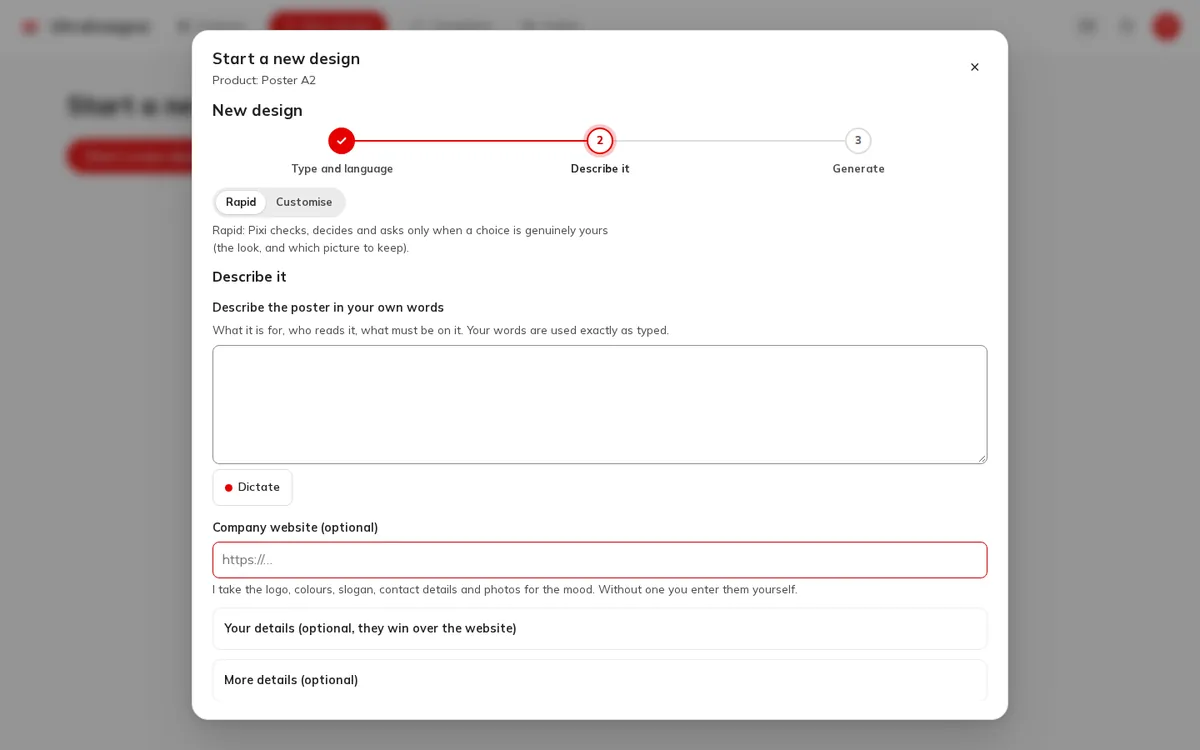
In Describe it, write what the design is for, who reads it and what must be on it; you can also Dictate. Optionally add the Company website (optional), Your details (optional, they win over the website), More details (optional) and your Logo and other images to print (optional).
Step 4: Generate
Click Generate the design. The checklist What the designer is doing shows each step. The wizard stops when a choice is yours: you confirm the type (Yes, that is it), the texts (Continue with these texts), the proposal (Use this design) and then Choose the picture from three versions.
Step 5: Open it in the editor
When the design is ready, click Open in the editor. From here on it is a normal project: every text, picture and colour can be changed.
Rapid or Customise
- Rapid (the default): Pixi checks, decides and asks only when a choice is genuinely yours (the look, and which picture to keep).
- Customise: you choose every detail along the way (type, texts, design, image descriptions). You can even edit the exact descriptions the image generator receives before anything is painted (Paint).
What the wizard never does
Your words are used exactly as typed: the AI does not rewrite names, wording, logos or codes you enter. Texts it suggests are shown to you first, and only what you confirm is placed on the design.
Screens and prices in the pictures are examples; the app always shows the current price before you pay.
Written for the app as of 2026-10-27.