

Designing
QR codes, barcodes, symbols and blocks
Codes are made from the exact content you enter and stay vectors in the print file, so they print sharp.
In this guide
Add a QR code
Step 1: Add the code
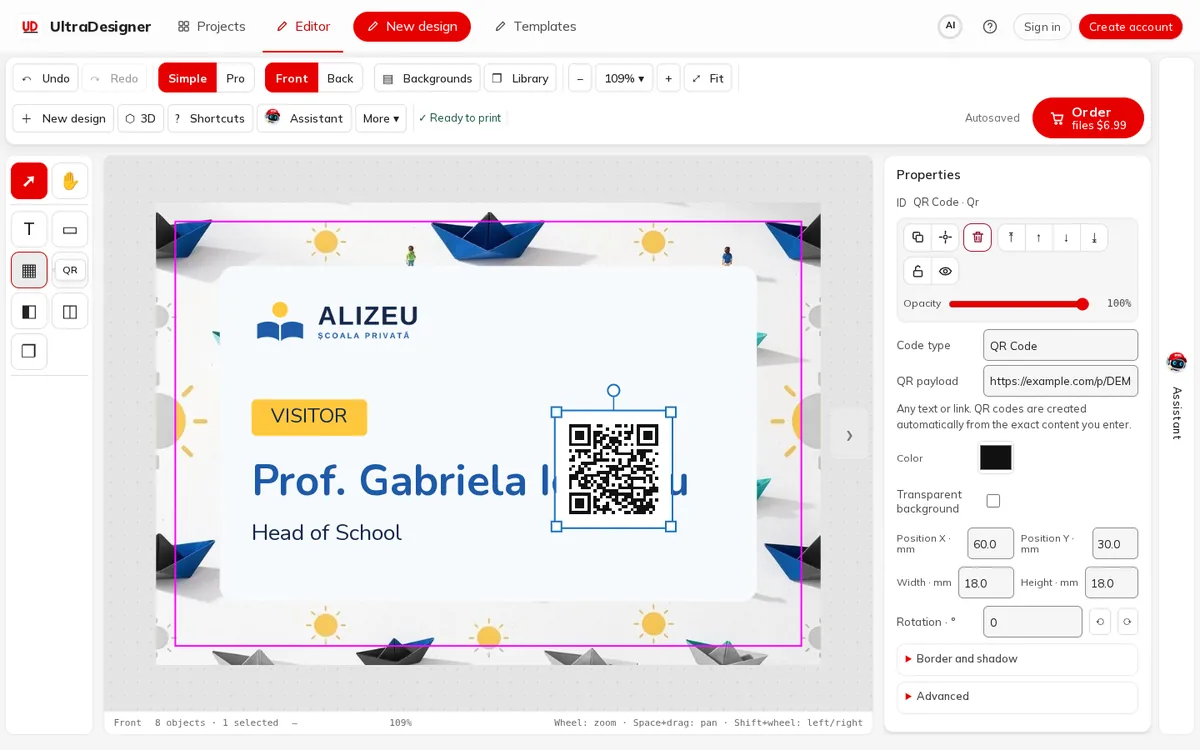
Click the QR tool on the left rail (its tooltip starts with + QR code). A code appears on the design.
Step 2: Enter the content
In Properties, type the content in QR payload: a web address, a phone number or any text. QR codes are created automatically from the exact content you enter.
Step 3: Size and place it
Make it large enough to scan comfortably and keep it inside the safe area. Leave a light, calm area around it.
Add a barcode
Click the barcode tool (Barcode). Add a barcode (Code 128, EAN-13, ...). Change the type in the properties. In Code type you can choose QR Code, Code 128, EAN-13, EAN-8, UPC-A, Code 39, ITF, Data Matrix or PDF417. Digits under the code shows the number under the bars.
Transparent background removes the white box behind the code. Only do this on a light, calm area, and test the code with a phone.
Symbols and blocks (Pro)
In Pro mode the rail has Symbols: vector drawings that print sharp at any size, with their own Symbol colour. Blocks are ready-made groups such as a Gift card / voucher, Loyalty stamps or a Member / ID layout; choose one and click Add to card.
Screens and prices in the pictures are examples; the app always shows the current price before you pay.
Written for the app as of 2026-10-27.